Let’s get you
on your way.
Answers to the most common setup questions. Still stuck? Email us with your order reference and we’ll help.
Check your balance.
See how much data you have left using your PingESIM order ID. You’ll find it in your confirmation email. If you’re on another device, we’ll help you recover your private eSIM link.
Check your balanceI can’t install a profile+
Check compatibility, unlock status, internet access, and whether the profile has already been installed. Do not repeatedly scan a single-use QR or delete a live profile without supplier guidance.
I installed it but have no data+
Check that you are in a supported destination, that the plan is active, and that the correct eSIM is selected for data. Follow your provider’s roaming and APN instructions.
I need more data+
Check usage and validity in your provider account. Some profiles support top-ups; others require a new package or profile.
Where is my eSIM?+
Your QR code is shown right after payment and emailed to the address you used at checkout. On the device you bought from, open My eSIMs. On another device, use “Email my eSIMs” on the My eSIMs page.
Phones that support eSIM
Check whether your phone supports eSIM technology before choosing your plan.
Your phone can tell you.
Dial *#06# in your phone app. An EID indicates eSIM support. If you don’t see an EID, check your device settings or contact your manufacturer to confirm.
Your device must also be carrier-unlocked. Support varies by purchase country and hardware variant.Is your phone ready to roam?
Check both eSIM support and carrier unlock status. Support can vary by country of purchase and hardware variant.
On iPhone
Apple: check carrier unlock ↗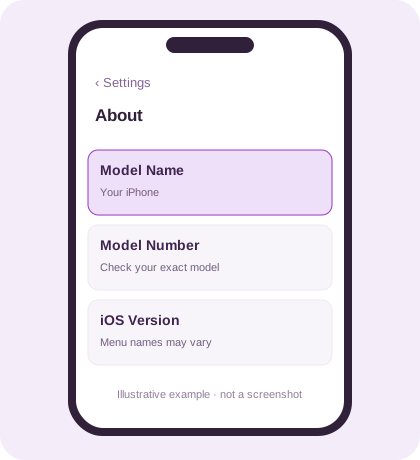
Illustrative example. Your screen may look different. Find your exact model
Settings → General → About
Note the Model Name and Model Number. Confirm eSIM support for your model and country of purchase using Apple’s documentation.
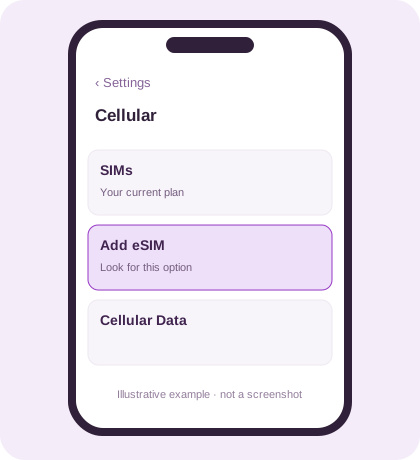
Illustrative example. Your screen may look different. Look for Add eSIM
Settings → Cellular / Mobile Data → Add eSIM
Look for an Add eSIM option. You do not need to install a plan yet. Menu names can differ by iOS version and region.
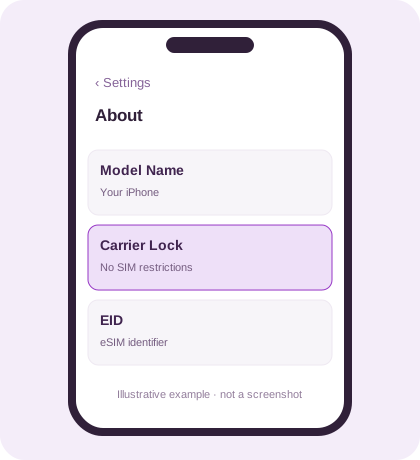
Illustrative example. Your screen may look different. Check carrier unlock
Settings → General → About → Carrier Lock
“No SIM restrictions” means your iPhone is unlocked. If you see a lock restriction, contact your carrier before buying a travel eSIM.
On Android
Samsung: find the eSIM menu ↗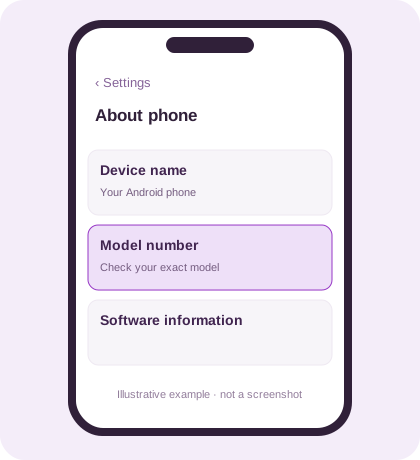
Illustrative example. Your screen may look different. Find your exact model
Settings → About phone
Note the exact model number and purchase country. Ask the manufacturer to confirm eSIM support for that hardware variant.
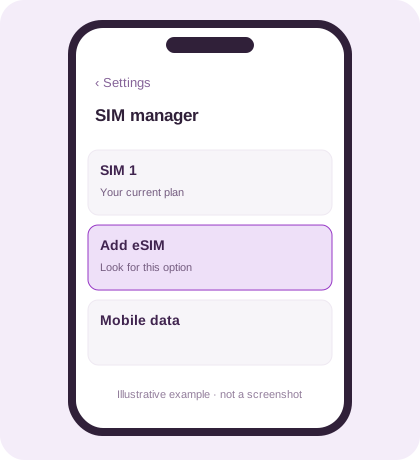
Illustrative example. Your screen may look different. Look for Add eSIM
Samsung: Settings → Connections → SIM manager
Look for Add eSIM. Other Android phones use different network or SIM menus; check your manufacturer’s instructions for your exact phone.
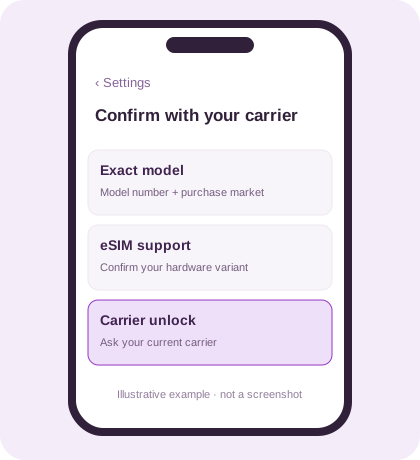
Illustrative example. Your screen may look different. Confirm carrier unlock
Contact your current carrier
Android has no single carrier-lock menu shared by all phones. Ask your carrier whether your exact device is unlocked and can use another provider’s eSIM.
Ready when both checks pass
Your exact device must support eSIM and be carrier-unlocked. An Add eSIM option or EID alone does not confirm carrier unlock.
Still unsure? Confirm your model and purchase market with the manufacturer, and unlock status with your carrier before buying.
Ask our support team ↗Supported devices
Apple iPhone
- iPhone 16 · 16 Plus · 16 Pro · 16 Pro Max
- iPhone 16e
- iPhone 15 · 15 Plus · 15 Pro · 15 Pro Max
- iPhone 14 · 14 Plus · 14 Pro · 14 Pro Max
- iPhone 13 · 13 mini · 13 Pro · 13 Pro Max
- iPhone 12 · 12 mini · 12 Pro · 12 Pro Max
- iPhone 11 · 11 Pro · 11 Pro Max
- iPhone XS · XS Max · XR
- iPhone SE (2020) · SE (2022)
Apple iPad
- iPad Pro (Cellular)
- iPad Air (Cellular)
- iPad (7th gen+) (Cellular)
- iPad mini (5th gen+) (Cellular)
Samsung Galaxy
- Galaxy S25 · S25+ · S25 Ultra
- Galaxy S24 · S24+ · S24 Ultra · S24 FE
- Galaxy S23 · S23+ · S23 Ultra · S23 FE
- Galaxy S22 · S22+ · S22 Ultra
- Galaxy S21 · S21+ · S21 Ultra
- Galaxy S20 · S20+ · S20 Ultra
- Galaxy Z Fold 6 · 5 · 4 · 3 · 2
- Galaxy Z Flip 6 · 5 · 4 · 3
- Galaxy Note20 · Note20 Ultra
Google Pixel
- Pixel 9 · 9 Pro · 9 Pro XL · 9 Pro Fold
- Pixel 8 · 8 Pro · 8a
- Pixel 7 · 7 Pro · 7a
- Pixel 6 · 6 Pro · 6a
- Pixel 5 · 5a
- Pixel 4 · 4 XL · 4a
- Pixel 3 · 3 XL · 3a
Motorola
- Razr 2024 · Razr+ 2024
- Razr 2023 · Razr 40 · Razr 40 Ultra
- Edge 2024 · Edge 2023 · Edge+
- Moto G54 · G84
Huawei
- P40 · P40 Pro
- Mate 40 Pro
- Mate Xs 2
Sony Xperia
- Xperia 1 IV · 1 V
- Xperia 5 IV · 5 V
- Xperia 10 IV · 10 V
Oppo
- Find X3 · X5 · X8
- Find N2 Flip
- Reno 5 A · 6
Honor
- Magic 4 · 5 · 6 Pro
- Honor 90 · 200
Nokia
- Nokia X30
- Nokia G60
Microsoft Surface
- Surface Duo · Duo 2
- Surface Pro (Cellular)
Fairphone
- Fairphone 4
- Fairphone 5
Many recent iPhone, Samsung Galaxy and Google Pixel models support eSIM. If you’re unsure about your exact model, our team can help you check.
Ask our support team